Murble is also available for Android on Google Play, with local transcription and AI. Steps, screenshots and Apple integrations in this guide describe the iOS edition. For Android sync and diagnostics, see the Android privacy policy and support.
Import and transcribe, step by step
-
Get the audio file onto the iPhone
Save it into Files or iCloud Drive, or AirDrop it from a Mac. If the recording is in Apple's Voice Memos app, use the share sheet: Murble's Share Extension accepts supported audio and saves it as a note for processing.
-
Import it into Murble
In the library, choose Import audio file and pick the recording. Murble accepts m4a, mp3, wav and the other audio types iOS can read. One file at a time, so a folder of interviews is a repeated action rather than a batch job.
-
Let it transcribe on the device
Transcription runs on the phone using Apple's speech recognition or a Whisper model you have downloaded. Nothing is uploaded. A long file keeps processing inside the app while you read other notes, and Murble tells you when the transcript is ready.
If you want this to work with no connection at all, install an offline model first: see offline transcription on iPhone.
-
Correct the transcript
Every line is time aligned. Tap one to jump the audio to that moment, then fix the word that came out wrong. In a conversation, anonymous speaker labels separate the voices, and you can rename, merge or split them.
-
Export, or clip a passage
Export the transcript or a summary as PDF, Markdown, RTF, plain text, JSON, SRT or VTT. You can also select a passage and share just that stretch of audio as an m4a clip, which is the fastest way to send somebody the twenty seconds that matter.
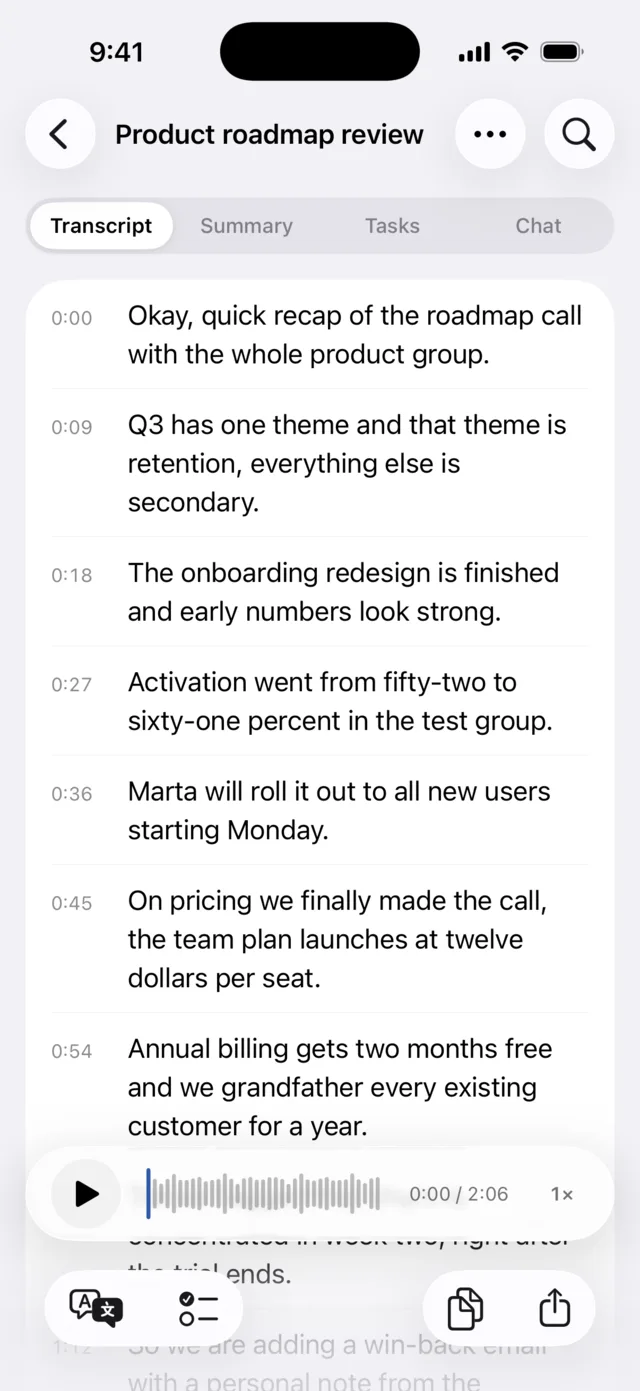
Correcting a transcript is the real work
No speech model gets names, jargon and crosstalk right every time, and a transcript you cannot fix is a transcript you cannot trust. The parts of Murble that matter most for imported files are the boring ones.
- Tap to seek. When a line looks wrong, hearing it again is one tap away rather than a hunt through a waveform.
- Inline editing. Fix the word in place. The timing stays attached to the line, so exports and subtitles stay aligned.
- Speaker labels you can correct. Diarization is best effort. When it splits one person into two, merge them; when it merges two into one, split them.
- Full text search across every note. Once a memo is text, it becomes findable, which is usually the actual reason for converting it.
After the transcript, optionally
An imported recording gets the same treatment as one you made in the app: a summary in one of four styles, automatically detected action items, and, on Pro, a structured report, translations and chat with the note. All of it runs on the phone. See on device AI note taking.
Export formats and what each is for
| Format | Use it for |
|---|---|
| Sending a finished, readable document to someone who will not edit it | |
| Markdown | Dropping into Obsidian, a wiki or a repository |
| RTF | Pasting into Pages or Word with the formatting intact |
| Plain text | The lowest common denominator, and the easiest to script against |
| JSON | Keeping structure and timings for your own tooling |
| SRT | Subtitles for video editors and most players |
| VTT | Subtitles for the web |
SRT and VTT carry the line timings, which is why correcting text inline rather than retyping it elsewhere is worth the small effort.
Honest limitations
- One file per import. The importer takes a single audio file at a time. There is no bulk queue for a folder of recordings.
- Formats are limited to what iOS can decode. m4a, mp3 and wav are the common cases. An exotic container or codec may simply not be offered in the picker.
- Long files take real time. Transcription is computation on your phone, so a two hour recording is a wait, not an instant. The device will warm up, and it is worth keeping it on power.
- Quality in, quality out. A phone in a pocket at the back of a lecture hall produces audio that no model reads well. Distance, echo and overlapping speech hurt far more than the choice of model.
- Timestamps come from the file. If the recording was already edited or has gaps, the alignment reflects the file you imported, not the original event.
- Imported audio counts against your storage. The file is copied into the app so the note stays self contained, which means a large archive uses real space on the device.
Sources
- Polish version of this guide: notatki głosowe na tekst
- Accepted import types and single file selection: the library's Import audio file flow in the current build
- Export formats: the export screen, and the landing page FAQ
- Offline setup for imports with no connection: offline transcription on iPhone
Turn the archive into text
Import, transcribe and export are free with no caps, and the audio never leaves the phone to get there.
Download on the App StoreMore detail on the Murble landing page.