Murble is also available for Android on Google Play, with local transcription and AI. Steps, screenshots and Apple integrations in this guide describe the iOS edition. For Android sync and diagnostics, see the Android privacy policy and support.
How offline transcription works on an iPhone
Two things have to be true before a phone can transcribe without a network. The speech model has to be small enough to run on the device, and it has to be present on the device already. Most apps fail the second condition: they will happily transcribe on a train until the signal drops, because the recognition was always happening on a server.
Murble uses two on device engines and picks between them.
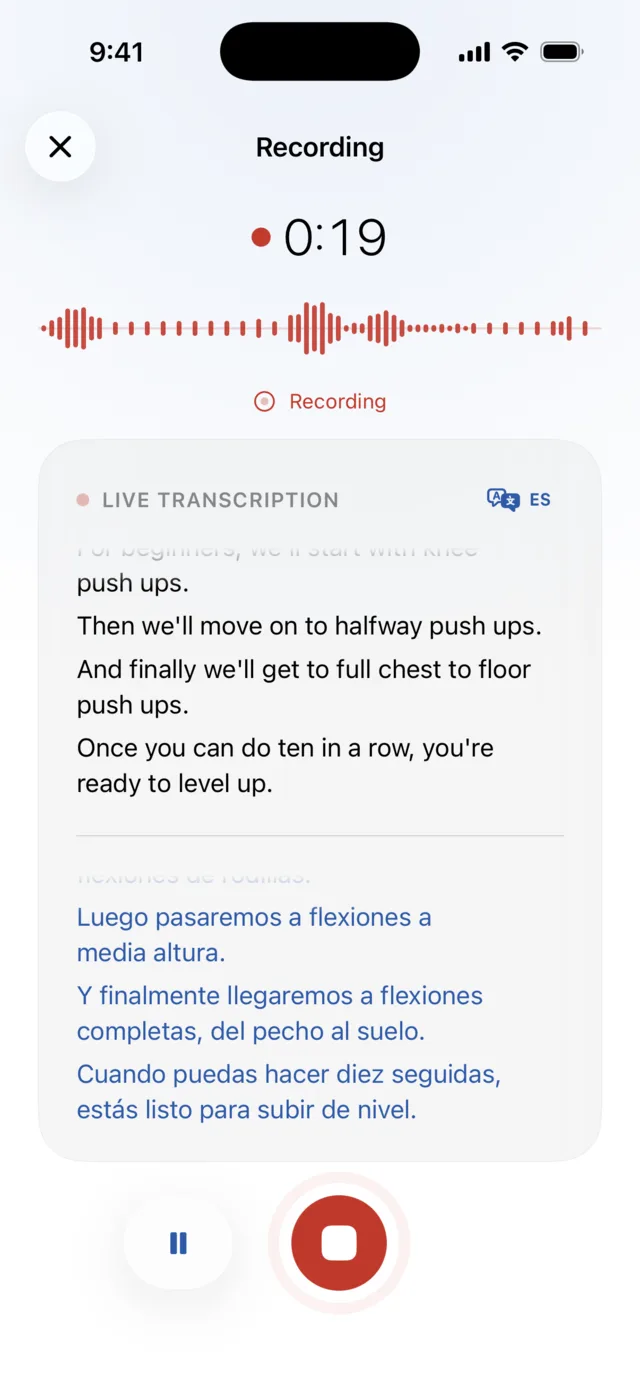
- Apple's speech recognition handles the languages iOS ships support for, with no download from us. It is fast and it is what powers the live transcript while you speak.
- Whisper, a speech model you download inside the app, covers dozens more languages, including automatic language detection, and is often better on accented or messy audio.
If the preferred engine is unavailable, Murble falls back through the others rather than failing. What it never does is send your audio somewhere else to compensate.
The setup, step by step
-
Install an offline speech model
Open Settings → Offline transcription and pick a size. Murble offers three: Fastest at about 75 MB, Balanced at about 150 MB, and Best accuracy at about 500 MB. Balanced is the recommended default and the right answer for most people.
The screen states the size before you commit, and tells you afterwards that the model is installed.
-
Let the download finish
The transfer continues while you use the rest of the app and resumes if you relaunch, so you do not have to sit and watch it. Wi-Fi only is on by default, which is worth leaving on: these files are hundreds of megabytes.
This is the one step that needs a connection. It carries no content of yours, only the model file.
-
Choose the engine and the language
In Settings → Transcription the engine selector offers Automatic, Apple Speech and Whisper. Automatic is fine; choose Whisper explicitly when you want its language coverage every time.
Set Language to the language you actually speak rather than leaving it on Automatic if you want the live transcript while recording, because the live preview needs a chosen language.
-
Go offline and record or import
Turn on airplane mode. Record a note, or import an audio file you already have. Transcription starts on the phone, and for long recordings it keeps running inside the app while you read other notes.
-
Read, correct and export
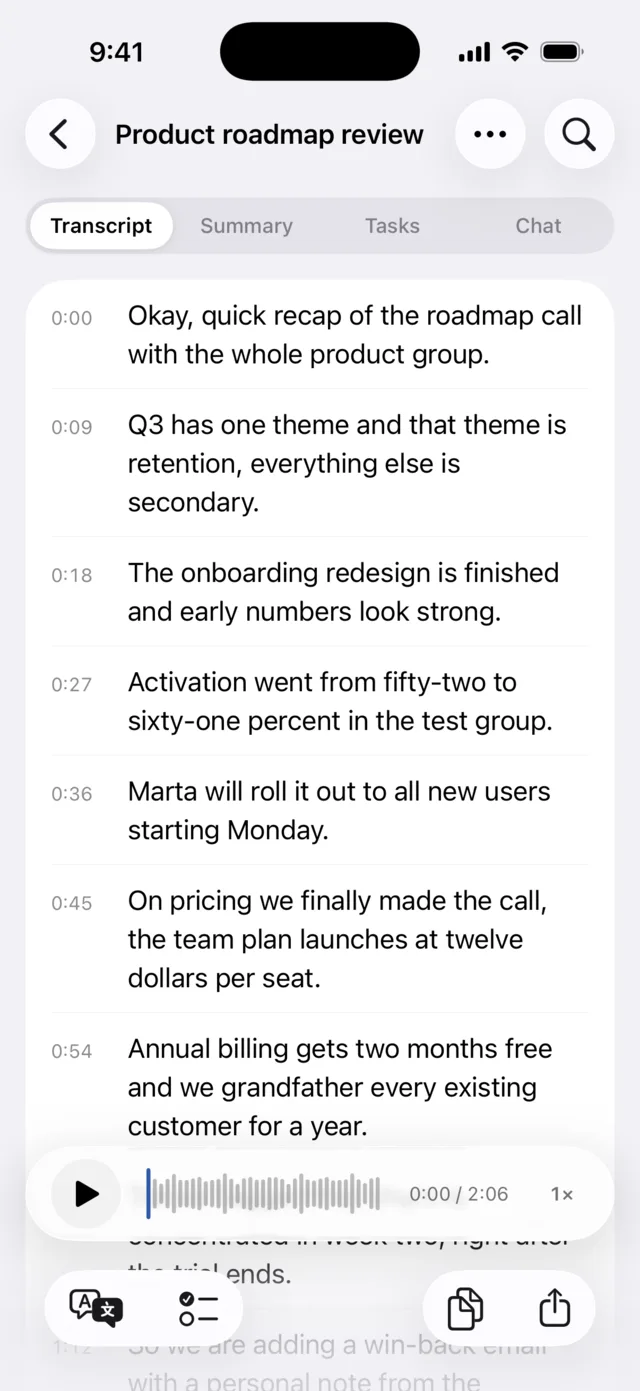
The transcript is time aligned: tap a line to jump the audio there, fix a word inline, select a passage to copy or share it as an audio clip. Export as PDF, Markdown, RTF, plain text, JSON, SRT or VTT. All of it works with the radios still off.
Which model size to pick
| Model | Size | Best for |
|---|---|---|
| Fastest | about 75 MB | Short, clear notes where speed matters more than the last few percent |
| Balanced | about 150 MB | The recommended default, and the best tradeoff for most notes |
| Best accuracy | about 500 MB | Tricky audio and rarer languages, at the cost of the slowest pass |
Sizes are the figures the app shows next to each option before you download it. You can install more than one and switch between them, and you can remove a model to reclaim the space.
Verifying it really is offline
Do not take this page's word for it either. Turn on airplane mode, check that Wi-Fi is off as well, record thirty seconds and watch the transcript appear. If you want to be thorough, do the same test with any other voice notes app on your phone and compare what happens.
Honest limitations
- The first download needs a connection, and it is not small. Between about 75 MB and about 500 MB for speech, and up to about 2.4 GB if you also want offline AI summaries. Set this up before the flight, not on it.
- Accuracy varies with the model tier and the audio. A 75 MB model on a noisy room with three people talking over each other will make mistakes. So will the 500 MB one, less often. Nothing here is a promise of a perfect transcript, which is why every line is editable.
- On device models are smaller than server models. That is the whole tradeoff. A large cloud model will often read difficult audio better. You are choosing privacy and independence over the last increment of accuracy.
- Long recordings take real time and real battery. Transcription is compute on your phone. An hour of audio is not instant, and the device will warm up.
- The live preview needs a chosen language. With the language left on Automatic, you still get a full transcript afterwards, just not the words appearing as you speak.
- Language coverage differs by engine. Apple's recognition covers the languages iOS supports; the Whisper model adds dozens more. Neither covers everything, and quality is uneven across languages.
- Storage is finite. Models, audio and transcripts all live on the phone. Murble checks free space before a download, but a device that is nearly full is a device that cannot install a model.
Sources
- Model names and sizes: the app's Settings → Offline transcription screen in the current build
- Engine options and language behaviour: the app's Settings → Transcription screen
- Export formats and offline scope: landing page FAQ
- Where other apps run their recognition: the comparison guide, dated and sourced
Set it up before you need it
Recording, transcription and AI summaries are free with no caps. Install a model once and the transcript follows you into airplane mode.
Download on the App StoreMore detail on the Murble landing page.